
Free LinkedIn Follow-Up Reminder: Track Every Conversation Without a CRM
Set up a free LinkedIn follow-up reminder in four steps. Log each message in one click and see who is due today, with no CRM.
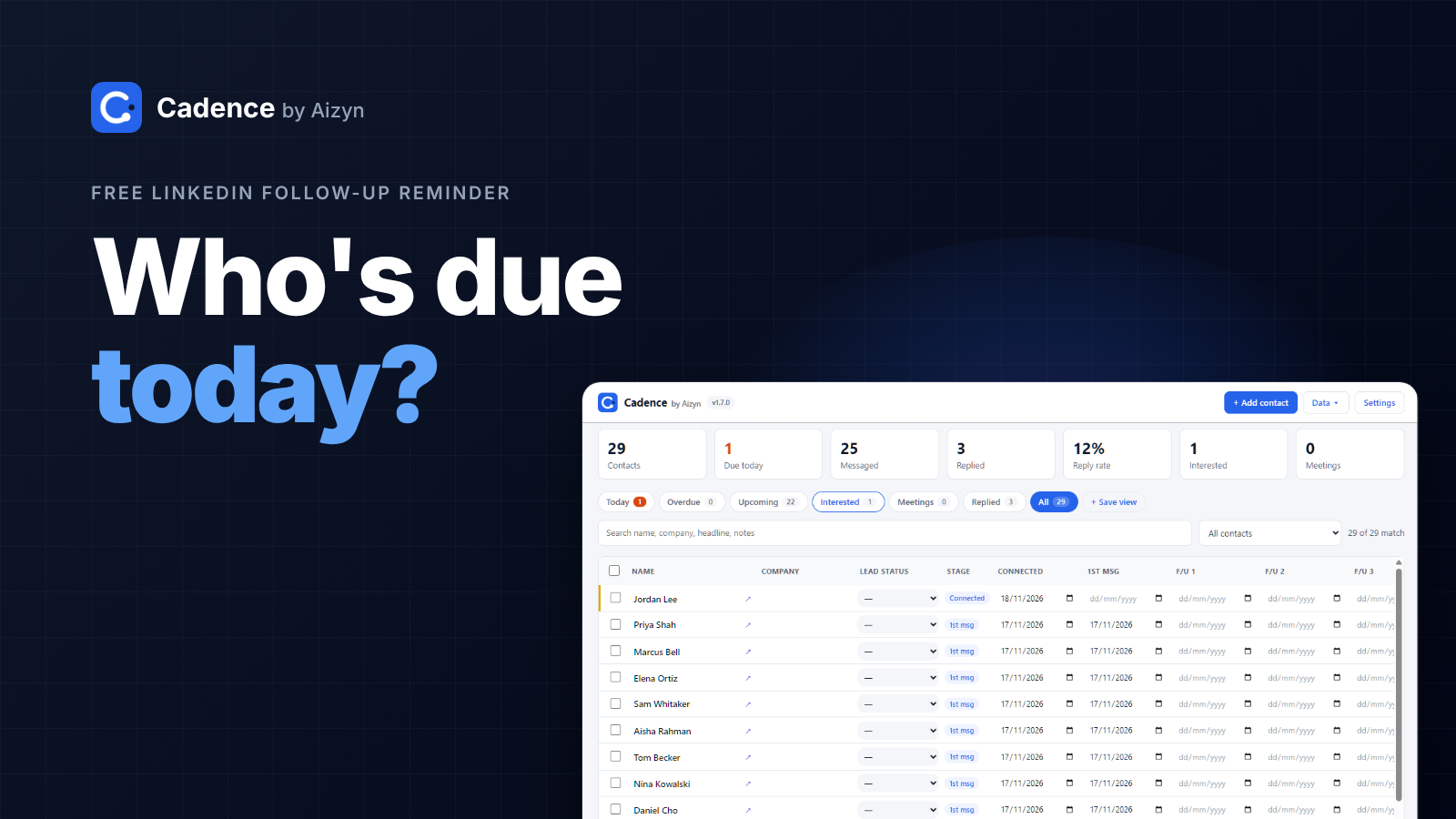
The simplest free LinkedIn follow-up reminder is a Chrome extension that sits beside the profile you are viewing, logs each message in one click, and shows you who is due every morning. Cadence does that, it is free, and it never sends or automates anything. This guide walks through the setup in four steps, with no CRM and no spreadsheet to maintain by hand.
What you actually need to track
Most people reach for a CRM the moment follow-ups slip. That is usually too much tool for a small problem.
To follow up well on LinkedIn you only need to know three things about each person:
Who you messaged
When you last wrote to them
When you should write next
A full CRM tracks deals, pipelines, and forecasts. A blank spreadsheet tracks those three things, but only if you remember to open it and update every row. The goal is a middle path: something light enough that you actually use it, and automatic enough that nothing slips.
That is what a reminder does. It holds the dates so you do not have to.
Step 1: Install Cadence and bring in your connections
Install Cadence from aizyn.app/cadence. It opens beside whichever LinkedIn profile you are viewing, so you never switch tabs to log something.
You can start two ways:
Start fresh. Add people as you message them. This is the easiest option if you only have a handful of active conversations.
Import your connections. Cadence imports LinkedIn's Connections.csv file. In LinkedIn, request a copy of your data from your account settings and look for the connections file. Import it once, and your existing network is already in the list.
Either way, you can export your data at any time, so you are never locked in.
Step 2: Log your first message in one click
Send your message on LinkedIn the way you normally would. Then, in the Cadence panel next to the profile, click I sent the first message.
That one click does the bookkeeping. Cadence keeps a timeline for each person with these steps:
Connected
First message sent
1st to 5th follow-up sent
Replied
Each step has a date. Cadence times the follow-ups for you, up to five after the first message, so you do not have to work out when the next one is due. If you want a different date, you can set a custom reminder on any contact.
Nothing is sent from the extension. You write and send every message yourself.
Step 3: Open the Today list every morning
This is the habit that makes the system work. Open the Today tab in the Cadence panel. It shows only the people who are due for a follow-up that day, and a small badge on the tab tells you how many.
Work through the list:
Open the person's conversation.
Write a follow-up that adds something new. If you need ideas, the 5-step follow-up cadence has an example message for every stage.
Send it, then click to log it.
When the list is empty, you are done. No scrolling through old threads, no guessing who you forgot.
Step 4: Mark replies and keep a few notes
When someone answers, click They replied. That marks the conversation as replied on their timeline, so you can see at a glance who is talking to you and who has gone quiet.
Then add the small details that make the next message easier to write:
Lead status. Pick one: Interested, Meeting booked, Follow up later, No response, Not interested, Not a fit, or Closed won.
Remind me on. Set a specific date if you promised to circle back in March, for example.
Notes. One line about what they said, so you never have to re-read the thread.
Three fields. That is the whole system, and it is enough to stop conversations from dying quietly.
See everything in one sheet
The side panel is for the person in front of you. For the big picture, open the sheet view.
It shows every conversation in one table, with a summary row at the top: total contacts, how many are due today, how many you have messaged, how many replied, and your reply rate.
From there you can:
Switch between views: Today, Overdue, Upcoming, Interested, Meetings, Replied, and All
Save your own views for the filters you use most
Search by name, company, headline, or notes
Select many rows and update them in one click, with Undo if you slip
Import LinkedIn's Connections.csv, or export your data whenever you like
It is a spreadsheet that fills itself in. You get the clarity of a sheet without the chore of keeping it current.
FAQ
Is there a free LinkedIn follow-up reminder?
Yes. Cadence is a free Chrome extension that logs your LinkedIn conversations and shows who is due for a follow-up each day.
Do I need a CRM to track LinkedIn conversations?
Not for follow-ups. You only need to know who you messaged, when, and when to write next. A light tracker covers that without the setup of a CRM.
Does Cadence send messages for me?
No. It never sends or automates anything. You write and send every message yourself, and Cadence only keeps track of the dates.
Can I import my existing LinkedIn connections?
Yes. Cadence imports LinkedIn's Connections.csv file, and you can export your data at any time.
Can I track LinkedIn outreach in a spreadsheet instead?
You can, but you have to update every row by hand. A tracker that logs each message in one click avoids that work, and you can still export to a sheet whenever you want.